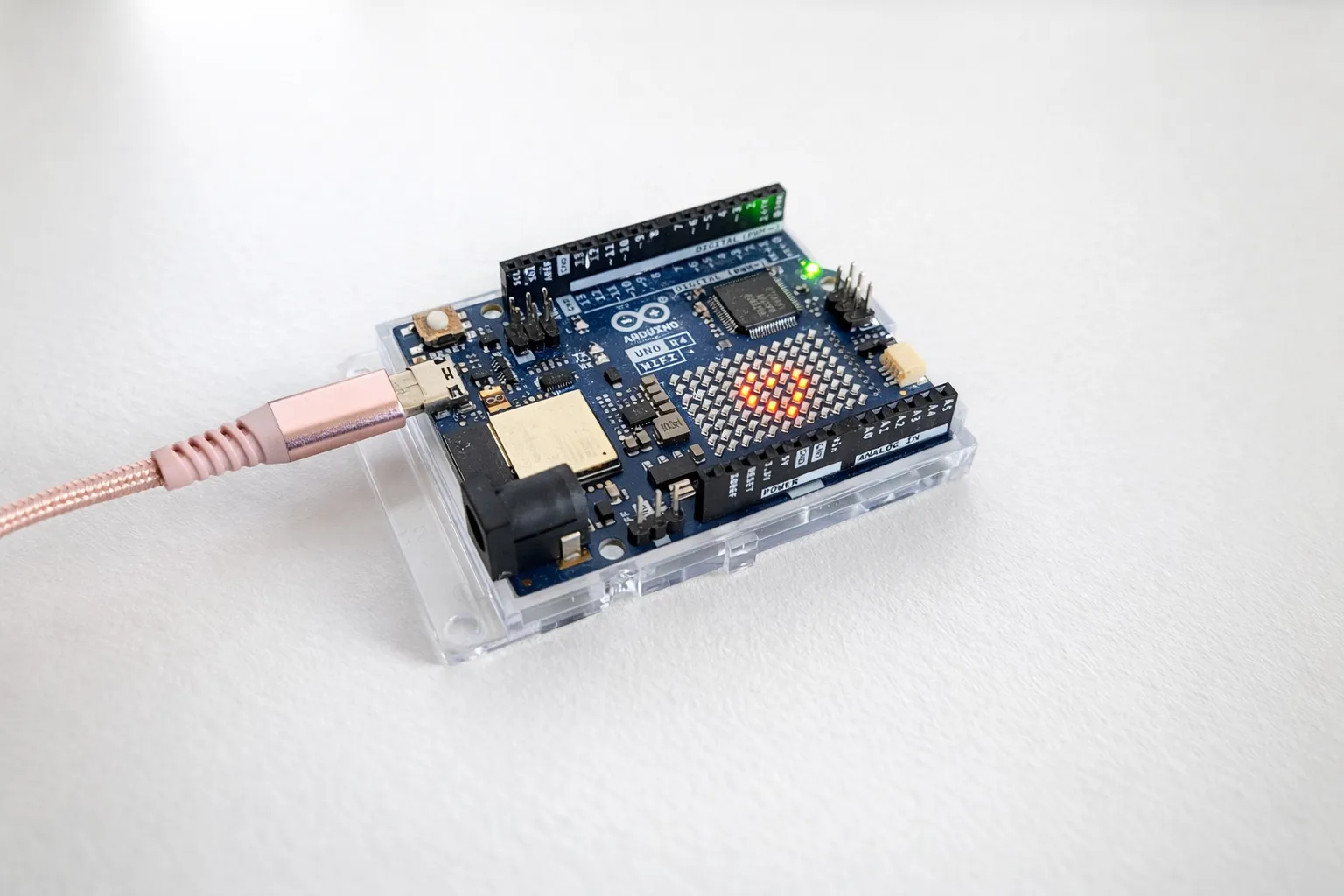
The Arduino UNO R4 is a pretty, toy-like looking board that greets you with hearts when you power it on. But don’t let that fool you. Underneath, it’s a powerful piece of hardware. It’s just hidden under the surface of the Arduino ecosystem.
In this post, I’ll show you what you’re missing if you’re using this board with Arduino IDE, and how you can unlock its true power with Zephyr RTOS.
ARM-based Arduino boards
Arduino boards use different CPUs. My board, the Arduino UNO R4 WiFi, is based on the advanced Renesas RA4M1 CPU, which allows it to run Zephyr RTOS. AVR-based Arduino boards are too limited to do this.
All boards that are supporting Zephyr system are listed on Supported Boards and Shields page. I guess that most or all ARM-based boards are supported.
As a side note, if you have AVR-based Arduino probably you can run FreeRTOS on it. But buying an ARM board is even better idea.
What is Zephyr?
Zephyr is an open-source, professional real time operating system. Its popularity is growing and it seems to be the second most popular RTOS after FreeRTOS. It’s used in real products on the market, so it’s definitely worth familiarizing yourself with.
Why choose Zephyr over the traditional Arduino approach?
Honestly, almost everything is better in Zephyr. But let’s focus on the concrete things:
➤ You leave the limited Arduino ecosystem behind
If you run Zephyr on your Arduino board, you’re actually leaving the Arduino ecosysytem.
You can use your favourite code editor instead of Arduino IDE and you will no longer link Arduino libraries.
Your code won’t be a weird sketch anymore, but casual C or C++ code. You don’t need to write a loop() and setup() body,
you will implement a main() function like in any normal C environment, and the skills that you gain will be directly applicable in the embedded systems job market.
If you’re worried that it will be complicated to start with Zephyr — don’t. Just like in Arduino, the hardware layer for supported boards is already implemented by Zephyr team!
➤ You get real task scheduling
With an RTOS, your device has real multitasking. You can have several simultaneous tasks that will not block each other (unlike basic super-loop approach of Arduino). Zephyr also ensures that time-critical events are handled deterministically, which is a core feature of any real-time operating system.
➤ Advanced workflow and testability
Thanks to Zephyr’s west build tool and the QEMU-based simulation boards,
you can set up advanced CI/CD workflows and run simulations easily. No need to flash real hardware after every minor change. Automated tests will cover
the basics. (But remember to test on real hardware before each release 🙂).
➤ Extra security
Although the RA41M CPU (Arduino Uno R4s CPU) has MPU, Arduino sketch keeps it disabled by default. With Zephyr, you can enable the MPU to isolate tasks, protect memory regions, and catch illegal accesses. You can also enable compiler stack canaries, which detect stack overflows before they corrupt memory.
On Arduino, writing to invalid memory does not always trigger a fault, and program may keep running with silent data corruption.
Setting up Zephyr on your PC
The first step is to install Zephyr on your PC. I won’t describe the full process here, as it changes from time to time. It’s recommended to do it according to the latest instructions, which are available at Developing with Zephyr » Getting Started Guide. Usually setting up Zephyr is straightforward and all you need to do is to follow the instruction.
It takes some time. After running each step you will have time to go make yourself a coffe or exercise a bit :).
Check the Arduino board ID for Zephyr ecosystem
Once the setup is ready, you need to get to know your board ID to be able to build and flash it. Jump to the supported boards, choose your board and copy its ID/name. Some boards have variants, which is part of the ID.
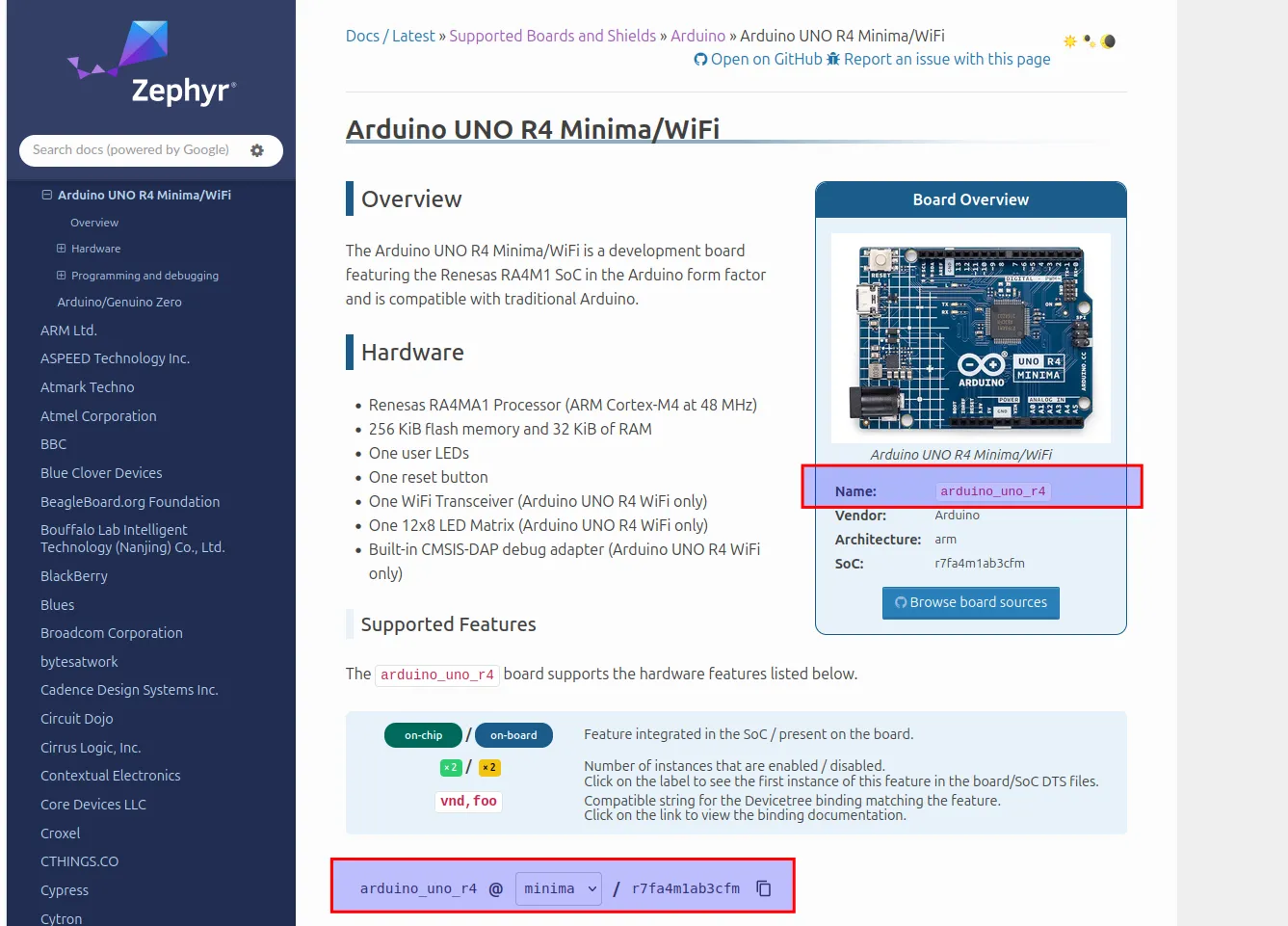
Click on your board to read the ID of the board. In my case it’s arduino_uno_r4@wifi.
Build the Zephyr sample
If you created virtual environment while installing Zephyr, remember to enable it when you want to work with Zephyr.
source ~/zephyrproject/.venv/bin/activateThen enter your Zephyr root directory. You’re ready for building and flashing the first sample. Remember to adjust the board ID (after -b) if needed.
cd ~/zephyrproject/zephyr
west build -p always -b arduino_uno_r4@wifi samples/basic/blinky
If you see something like this, it means the build was successfull:
-- Zephyr version: 4.3.99 (/home/kate/zephyrproject/zephyr), build: v4.3.0-3027-g545c2870e935
[142/142] Linking C executable zephyr/zephyr.elf
Memory region         Used Size  Region Size  %age Used
FLASH:       22536 B       240 KB      9.17%
RAM:        4712 B        32 KB     14.38%
OFS_OSIS_MEMORY:          28 B         28 B    100.00%
IDT_LIST:          0 GB        32 KB      0.00%
Generating files from /home/kate/zephyrproject/zephyr/build/zephyr/zephyr.elf for board: arduino_uno_r4
Flash your board
After successful build, flash the board with west flash command.
(.venv) kate@kate-Legion-Y540-15IRH-PG0:~/zephyrproject/zephyr$ west flashTroubleshooting for Ubuntu
On Ubuntu, the flash process hanged for me with message:
(.venv) kate@kate-Legion-Y540-15IRH-PG0:~/zephyrproject/zephyr$ west flash
-- west flash: rebuilding
ninja: no work to do.
-- west flash: using runner pyocd
-- runners.pyocd: Flashing file: /home/kate/zephyrproject/zephyr/build/zephyr/zephyr.hex
Waiting for a debug probe to be connected...
then, after some time I got the pyocd error:
-- runners.pyocd: Flashing file: /home/kate/zephyrproject/zephyr/build/zephyr/zephyr.hex
0000568 C Target type r7fa4m1ab not recognized. Use 'pyocd list --targets' to see currently available target types. See <https://pyocd.io/docs/target_support.html> for how to install additional target support. [__main__]
FATAL ERROR: command exited with status 1: pyocd flash -e sector -a 0x4000 -t r7fa4m1ab /home/kate/zephyrproject/zephyr/build/zephyr/zephyr.hex
It’s because pyocd packages were missing for this target. Install missing packages with pyocd pack install <ID>, where <ID> comes from error message above.
(.venv) kate@kate-Legion-Y540-15IRH-PG0:~/zephyrproject/zephyr$ pyocd pack install r7fa4m1ab
0000491 I No pack index present, downloading now... [pack_cmd]
Downloading packs (press Control-C to cancel):
Renesas.RA_DFP.6.3.0
Downloading descriptors (001/001)
(.venv) kate@kate-Legion-Y540-15IRH-PG0:~/zephyrproject/zephyr$ west flash
-- west flash: rebuilding
ninja: no work to do.
-- west flash: using runner pyocd
-- runners.pyocd: Flashing file: /home/kate/zephyrproject/zephyr/build/zephyr/zephyr.hex
0001659 I Loading /home/kate/zephyrproject/zephyr/build/zephyr/zephyr.hex at 0x00004000 [load_cmd]
[==================================================] 100%
0016585 I Erased 24604 bytes (19 sectors), programmed 24604 bytes (19 pages), skipped 0 bytes (0 pages) at 1.61 kB/s [loader]
Now you should be able to flash the sample correctly and see the blinking LEDs.
Play with Blinky sample
Open the sample code (located i.e. in ~/zephyrproject/zephyr/samples/basic/blinky) with your favorite code editor. You may want to copy the sample to some other place. Make some changes, i.e. change the LED blink frequency, and reflash. You’re able to write the programs for Zephyr now!
Run simulation
Unfortunately, the arduino_uno_r4@wifi cannot be (yet?) simulated directly with west/QEMU. But you can run simulation on other boards to validate the logic of your program.
For example, let’s run the Blinky sample on simulated mps2/an521/cpu0 board. To start the simulation run, you need to append -t run to the build command.
west build -p -b mps2/an521/cpu0 samples/basic/blinky -t runYou should see the console prints coming from the simulation:
LED state: OFF
LED state: ON
LED state: OFF
LED state: ON
LED state: OFF
Based on the system output you can build complicated tests scenarios that can be run on CI/CD pipelines.