Table Of Contents
Open Table Of Contents
- Arduino way to Blink an LED
- Which LED is it? First look into datasheet
- What microcontroller is it?
- Usage Notes for GPIO configuration on RA4M1
- Different ways of accessing the registers
- GPIO configuration procedure for RA4M1
- Clear the B0WI bit in the PWPR register [1]
- Set 1 to the PFSWE bit in the PWPR register [2]
- Clear the Port Mode Control bit in the PMR for the target pin to select the general I/O port [3]
- Specify the input/output function for the pin through the PSEL[4:0] bit settings in the PmnPFS register
- Set the PMR to 1 as required to switch to the selected input/output function for the pin
- Set the PDR bit in PmnPFS register to 1 to configure the pin as output [4]
- Clear the PFSWE bit and set B0WI bit to lock the configuration [5] and [6]
- Full code needed to configure the pin as I/O output
- Set the pin to high or low state to blink a LED
- Compare speed
- Compare code size
- Summary
Arduino way to Blink an LED
Blinking an LED on Arduino is extremely easy if you use Arduino libraries. In this post, we’ll take the first step beyond the beginner-friendly approach. ;)

Let’s open Blink example to see the easy way to blink an LED:
void setup() {
  // initialize digital pin LED_BUILTIN as an output.
  pinMode(LED_BUILTIN, OUTPUT);
}

void loop() {
  digitalWrite(LED_BUILTIN, HIGH);  // turn the LED on (HIGH is the voltage level)
  delay(1000);                      // wait for a second
  digitalWrite(LED_BUILTIN, LOW);   // turn the LED off by making the voltage LOW
  delay(1000);                      // wait for a second
}
This code is doing two main things needed to blink an LED:
- Configure the GPIO pin as an output,
- Set the pin to HIGH or LOW state.
This code will work on any Arduino board, because the Arduino libraries handle the hardware differences internally.
We would say that this code is hardware-agnostic. LED_BUILTIN can mean a different pin for different boards, digitalWrite will do different things
depending on the CPU architecture. That’s why this example can look the same for every Arduino board (AVR-based, ARM-based, etc.).
It’s convenient. However, at the same time the abstractions are hiding all interesting stuff that is going on under the hood. This approach is not really teaching us anything about embedded development: what really needs to be done to control the microcontroller pin? Additionally, we cannot assess if the implementation of Arduino libraries is efficient in terms of speed or code size, or evenif it’s free from any bugs or other issues (see: Reddit).
That’s why we will blink an LED without using Arduino libraries (well, not totally without, as we will still use some Arduino stuff). Instead, we will read the Arduino Uno R4 and RA4M1 datasheets and configure the GPIO pin manually.
Our goal is to blink the LED without using pinMode and digitalWrite functions.
For simplicity of this example, we will still use:
- the Arduino sketch, with the default/hidden Arduino setup, which is executed even before our
setup()is called, delay()function,- some definitions of the pins and registers from the Renesas RA4M1 support package, which is included in Arduino IDE for our board.
So this is not a bare-metal yet, but we will be approaching it :)
Which LED is it? First look into datasheet
First we need to know where the LED that we want to blink is connected. From Arduino datasheet, or Blinky example, we know that it’s LED_BUILTIN LED.
I will the same LED, but without using the LED_BUILTIN macro, to show you how to find the pin number and how to configure it manually.
For this purpose check the pinout in Arduino UNO R4 WiFi datasheet.
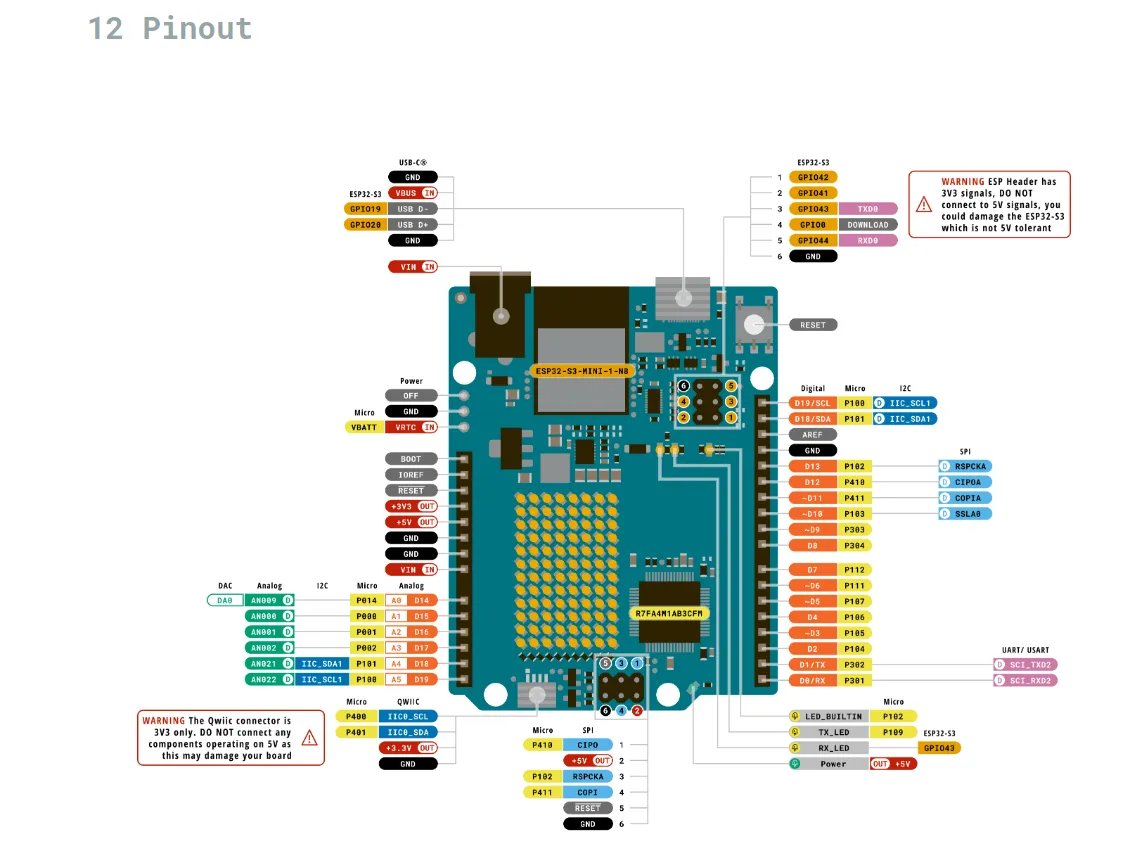 Source: https://docs.arduino.cc/resources/datasheets/ABX00087-datasheet.pdf
From the pinout diagram we see that LED_BUILTIN is connected to P102 pin of microcontroller. P102 means: PORT 1, PIN 02. This will be our output pin for blinking the LED.
What microcontroller is it?
Ok, so we know which microcontroller pin, but we don’t know yet which microcontroller is it :). Let’s go back to Arduino UNO R4 WiFi datasheet.
On the first page we can find the exact microcontroller model: R7FA4M1AB3CFM#AA0 from the Renesas RA4M1 series.
To proceed further, we need to consult the official hardware manual: Renesas RA4M1 Group User’s Manual: Hardware.
When you open this manual, you are leaving the friendly Arduino ecosystem, and entering the world of real embedded systems. You will see more than 1400 pages of documentation. Good news is that you don’t need to read it all. For this tutorial, we will only need to dig into the GPIO usage part.
Usage Notes for GPIO configuration on RA4M1
Jump to Section 19. I/O Ports in the RA4M1 hardware manual. This section describes everything needed to control a GPIO pin and blink the LED.
It’s always easiest to check for examples or usage notes first. Below is the procedure of specifying the pin function, which in our case means configuring the pin as output.
19.5 Usage Notes
19.5.1 Procedure for Specifying the Pin Functions
To specify the I/O pin functions:
1. Clear the B0WI bit in the PWPR register. This enables writing to the PFSWE bit in the PWPR register.
2. Set 1 to the PFSWE bit in the PWPR register. This enables writing to the PmnPFS register.
3. Clear the Port Mode Control bit in the PMR for the target pin to select the general I/O port.
4. Specify the input/output function for the pin through the PSEL[4:0] bit settings in the PmnPFS register.
5. Set the PMR to 1 as required to switch to the selected input/output function for the pin.
6. Clear the PFSWE bit in the PWPR register. This disables writing to the PmnPFS register.
7. Set 1 to the B0WI bit in the PWPR register. This disables writing to the PFSWE bit in the PWPR register.
We will break down what actually matters for our use case. But first, we need to decide how to the access to registers.
Different ways of accessing the registers
As the procedure above requires us to write to specific registers and bits, we need to know how to find them and how to write to them.
Do you remember that a register is just a specific memory address that is mapped to a hardware function? To control the hardware, we need to write to these addresses.
We have two options:
-
manual access: check the memory address of the register in the datasheet. Define the macro for this register address in the code. Then, use the macros as a pointers to write to this register. This is the most basic way to access registers, but it can be quite tedious and error-prone, especially for complex microcontrollers with many registers.
#define PWPR (*(volatile unsigned long *)0x40040D03) PWPR = 0x01; // write -
using the support package: Instead of defining addresses manually, we can use the header files provided by the manufacturer. These files add friendly names (like R_PORT1) to their physical memory addresses. In case of Arduino Uno R4 with RA4M1 microcontroller, these definitions are part of the Renesas Flexible Software Package (FSP), which is installed together with Arduino IDE. Let’s look for this file for RA4M1 in the hidden Arduino files.
On my PC, it’s located at:
~/.arduino15/packages/arduino/hardware/renesas_uno/1.5.1/variants/UNOWIFIR4/includes/ra/fsp/src/bsp/cmsis/Device/RENESAS/Include/R7FA4M1AB.h
I suggest use the support package now. In the header R7FA4M1AB.h you will find all the registers definitions for RA4M1, including the ones we need to configure the GPIO pin.
Open this file and browse it; we will need to find the definitions for the registers we need. Then, let’s follow the procedure.
GPIO configuration procedure for RA4M1
Clear the B0WI bit in the PWPR register [1]
The PWPR register is a Port Write Protection Register, which protects the pin configuration registers from accidental writes. By default, the B0WI bit is set to 1, which means that writes are locked. To allow changes to the pin configuration, we need to clear the B0WI bit.
You can consult again the manual to understand the PWPR and B0WI bit.
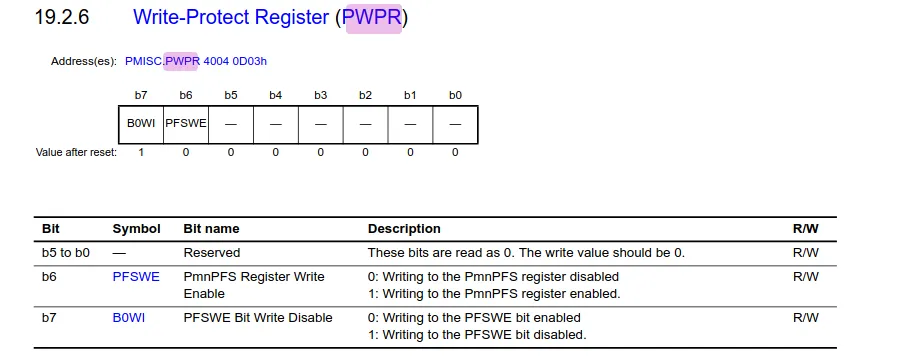
You can also see the address of the PWPR register and the bit number of B0WI bit in the manual, but as we don’t define the registers manually now, it’s just FYI.
Address(es): PMISC.PWPR 40040D03h
B0WI bit: 7
In BSP, the PWPR register and B0WI bit are defined as R_PMISC->PWPR_b.B0WI.
When you start typing the R_PMISC in IDE, you can always click on the macro to jump to the header and check other definitions.
Set 1 to the PFSWE bit in the PWPR register [2]
What is PFSWE? Look at the above PWPR screenshot again. The PFSWE (PmnPFS Register Write Enable) bit is another protection bit in PWPR register. After clearing B0WI, we can now set PFSWE bit to enable writing to PmnPFS (Port mn Pin Function Select Register) register.
Clear the Port Mode Control bit in the PMR for the target pin to select the general I/O port [3]
Each GPIO pin on the CPU can serve two roles: it can be a general-purpose I/O pin, or it can be used for a specific peripheral function (like UART, SPI, etc). PMR (Port Mode Control) bit inside PmnPF configures this role.
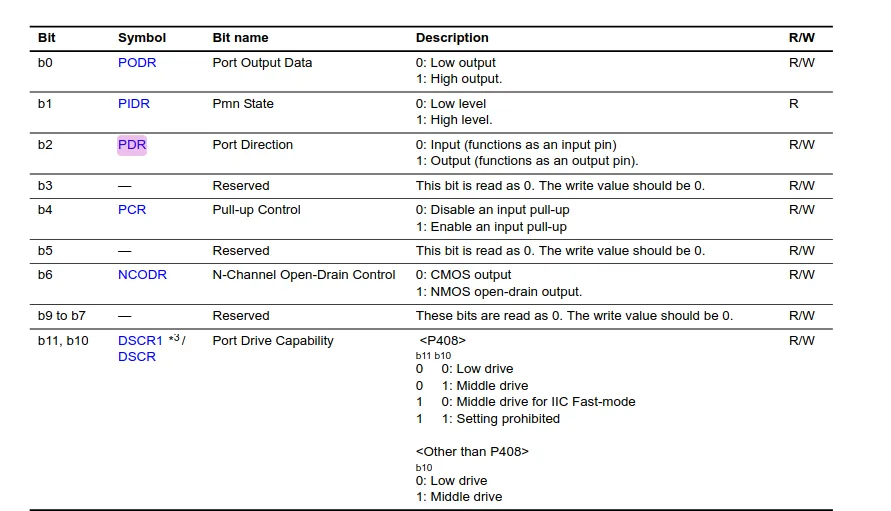
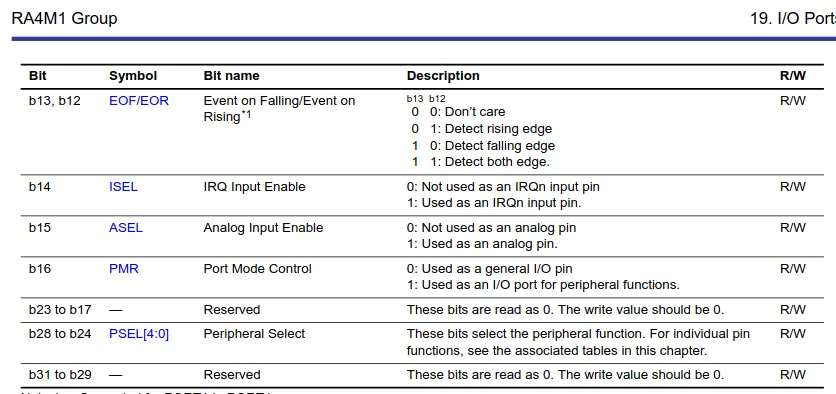
For general I/O purpose (which is our LED) — we need to clear the PMR bit.
Specify the input/output function for the pin through the PSEL[4:0] bit settings in the PmnPFS register
Not needed.
PSEL decides which peripheral function is assigned to the pin. Since we want to use it as a general I/O pin, and PMR bit was already cleared, we don’t need to set PSEL.
Set the PMR to 1 as required to switch to the selected input/output function for the pin
Not needed.
As we use pin as general I/O, PMR should be 0.
Set the PDR bit in PmnPFS register to 1 to configure the pin as output [4]
The pin is already configured as general I/O, but we need to specify the direction — input or output. For blinking LED, it’s output, so we need to set PDR bit to 1.
Clear the PFSWE bit and set B0WI bit to lock the configuration [5] and [6]
After we finish configuring the pin, set the protection bits back to their default state.
Full code needed to configure the pin as I/O output
The full configuration goes as follows:
void setup() {
    R_PMISC->PWPR_b.B0WI  = 0; // [1]
    R_PMISC->PWPR_b.PFSWE = 1; // [2]

    R_PFS->PORT[port].PIN[pin].PmnPFS_b.PMR = 0; // [3]
    R_PFS->PORT[port].PIN[pin].PmnPFS_b.PDR = 1; // [4]

    R_PMISC->PWPR_b.PFSWE = 0; // [5]
    R_PMISC->PWPR_b.B0WI  = 1; // [6]
}
Set the pin to high or low state to blink a LED
Now, we only need to set the pin to HIGH or LOW state to blink the LED. This is done by writing to the PODR (Port Output Data Register) register.
void loop() {
    R_PORT1->PODR_b.PODR2 = 1;  // ON
    delay(1000);
    R_PORT1->PODR_b.PODR2 = 0;  // OFF
    delay(1000);                // wait for a second
}
Compare speed
We have the manual LED blinking. It wasn’t that hard, although the datasheet sometimes wasn’t very clear. Now I want to compare
the speed of execution of our Arduino code vs manual register access. For doing this, I will use the DWT (Data Watchpoint and Trace) cycle counter,
which is a special register in ARM Cortex-M that counts the number of CPU cycles. This way, we will be able to verify
if our manual way of blinking LED is faster than using digitalWrite(), and if yes, how much.
void runBenchmark() {
  uint32_t start, end;
  const int N = 1000;

  Serial.println("--- Uno R4 Performance Benchmark (Cycles) ---");

  // 1. Measure digitalWrite
  start = DWT->CYCCNT;
  __DSB();
  for (int i = 0; i < N; i++) digitalWrite(LED_BUILTIN, HIGH);
  __DSB();
  end = DWT->CYCCNT;
  uint32_t dwTime = end - start;
  Serial.print("digitalWrite(): ");
  Serial.print(dwTime);
  Serial.println(" cycles");

  // 2. Measure Register Access
  start = DWT->CYCCNT;
  __DSB();
  for (int i = 0; i < N; i++) R_PORT1->PODR_b.PODR2 = 1;
  __DSB();
  end = DWT->CYCCNT;

  uint32_t regTime = end - start;
  Serial.print("Direct Register: ");
  Serial.print(regTime);
  Serial.println(" cycles");

  Serial.print("Registers are ");
  Serial.print((float)dwTime / regTime);
  Serial.println("x faster!");
  Serial.println("---------------------------------------------");
}
The result confirmed that direct register access is about 3.5x faster than digitalWrite():
10:11:20.307 -> ---------------------------------------------
10:11:28.344 -> --- Uno R4 Performance Benchmark (Cycles) ---
10:11:28.344 -> digitalWrite(): 42292 cycles
10:11:28.375 -> Direct Register: 12169 cycles
10:11:28.375 -> Registers are 3.48x faster!
10:11:28.375 -> ---------------------------------------------
Compare code size
As the last of our experiments, let’s compare the digitalWrite() code size with
direct register write. In this case, I only left LED ON call in the loop, so we can compare the loop size.
Original:
void loop() {
    digitalWrite(LED_BUILTIN, HIGH);
}
produces the following assembly code for the loop part:
00004140 <loop>:
    4140:	2101      	movs	r1, #1
    4142:	200d      	movs	r0, #13
    4144:	f005 bd68 	b.w	9c18 <digitalWrite>

00009c18 <digitalWrite>:
    9c18:	4b04      	ldr	r3, [pc, #16]	@ (9c2c <digitalWrite+0x14>)
    9c1a:	1c0a      	adds	r2, r1, #0
    9c1c:	bf18      	it	ne
    9c1e:	2201      	movne	r2, #1
    9c20:	f833 1030 	ldrh.w	r1, [r3, r0, lsl #3]
    9c24:	2000      	movs	r0, #0
    9c26:	f7fb bcf3 	b.w	5610 <R_IOPORT_PinWrite>
    9c2a:	bf00      	nop
    9c2c:	0000fa6c 	.word	0x0000fa6c

00005610 <R_IOPORT_PinWrite>:
    5610:	b2c8      	uxtb	r0, r1
    5612:	2301      	movs	r3, #1
    5614:	4083      	lsls	r3, r0
    5616:	b94a      	cbnz	r2, 562c <R_IOPORT_PinWrite+0x1c>
    5618:	041a      	lsls	r2, r3, #16
    561a:	0a0b      	lsrs	r3, r1, #8
    561c:	015b      	lsls	r3, r3, #5
    561e:	f103 4380 	add.w	r3, r3, #1073741824	@ 0x40000000
    5622:	f503 2380 	add.w	r3, r3, #262144	@ 0x40000
    5626:	2000      	movs	r0, #0
    5628:	609a      	str	r2, [r3, #8]
    562a:	4770      	bx	lr
    562c:	b29a      	uxth	r2, r3
    562e:	e7f4      	b.n	561a <R_IOPORT_PinWrite+0xa>
Raw register access:
void loop() {
    R_PORT1->PODR_b.PODR2 = 1;  // ON
}
produces the following:
00004140 <loop>:
    4140:	4a02      	ldr	r2, [pc, #8]	@ (414c <loop+0xc>)
    4142:	8813      	ldrh	r3, [r2, #0]
    4144:	f043 0304 	orr.w	r3, r3, #4
    4148:	8013      	strh	r3, [r2, #0]
    414a:	4770      	bx	lr
    414c:	40040020 	.word	0x40040020
In original code we have more or less 22 instructions, while in the modified code only 5 instructions. So the code size is another win!
Summary
digitalWrite() | Direct register access | |
|---|---|---|
| Portability | High (works on any Arduino) | Low (Specific to RA4M1) |
| Execution Speed | Slower ~3.5x | Faster |
| Code Size | Larger ~4x | Smaller |